
Transaction Details
 Transaction Details
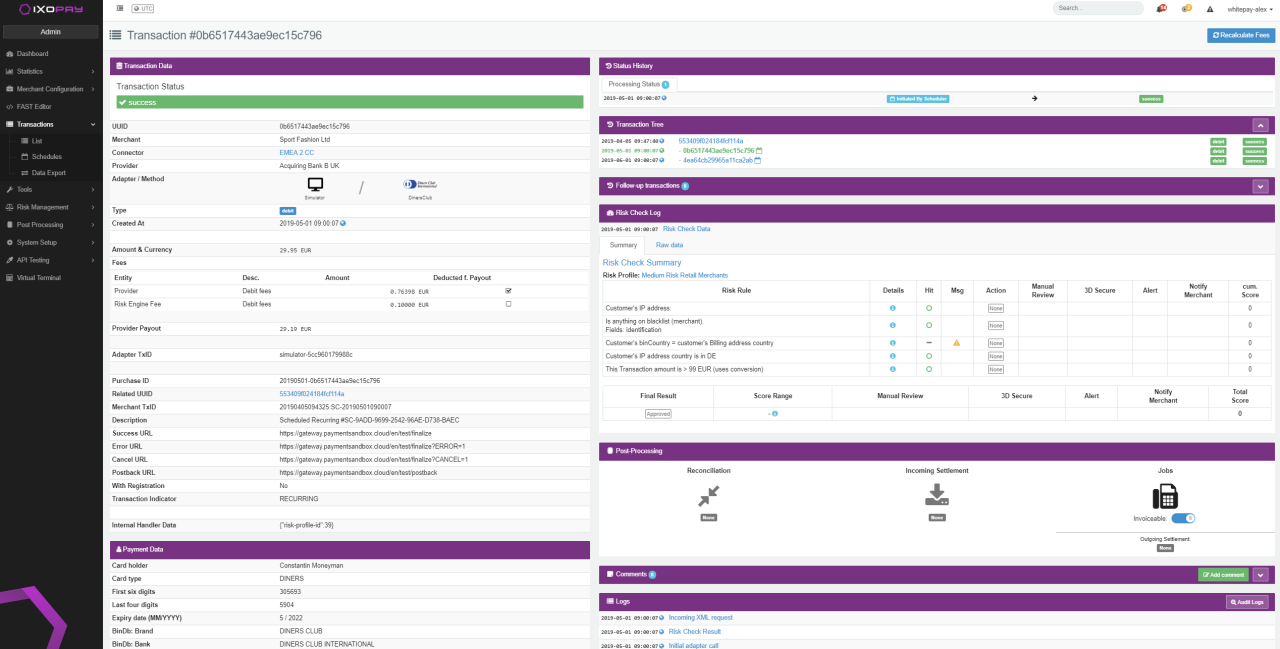
For each Transaction shown in the Transaction list you have the option to show more Details such as Transaction, Payment, Customer, History, Risk, Postprocessing or Log Data by selecting the Details Button for the individual Transaction.
Let’s have a look at the individual sections:
Action Buttons
Depending on your Permissions, you will see different Action Buttons in the top right corner:
- Send Postback, Recalculate Fees,
- Capture / Void Transaction,
- Refund Transaction,
- Approve / Decline,
- Cancel, Resolve,
- Simulate Chargeback / Chargeback Reversal
Transaction Data
In this section you will find data relating to the transaction itself (see Transaction Data Table)
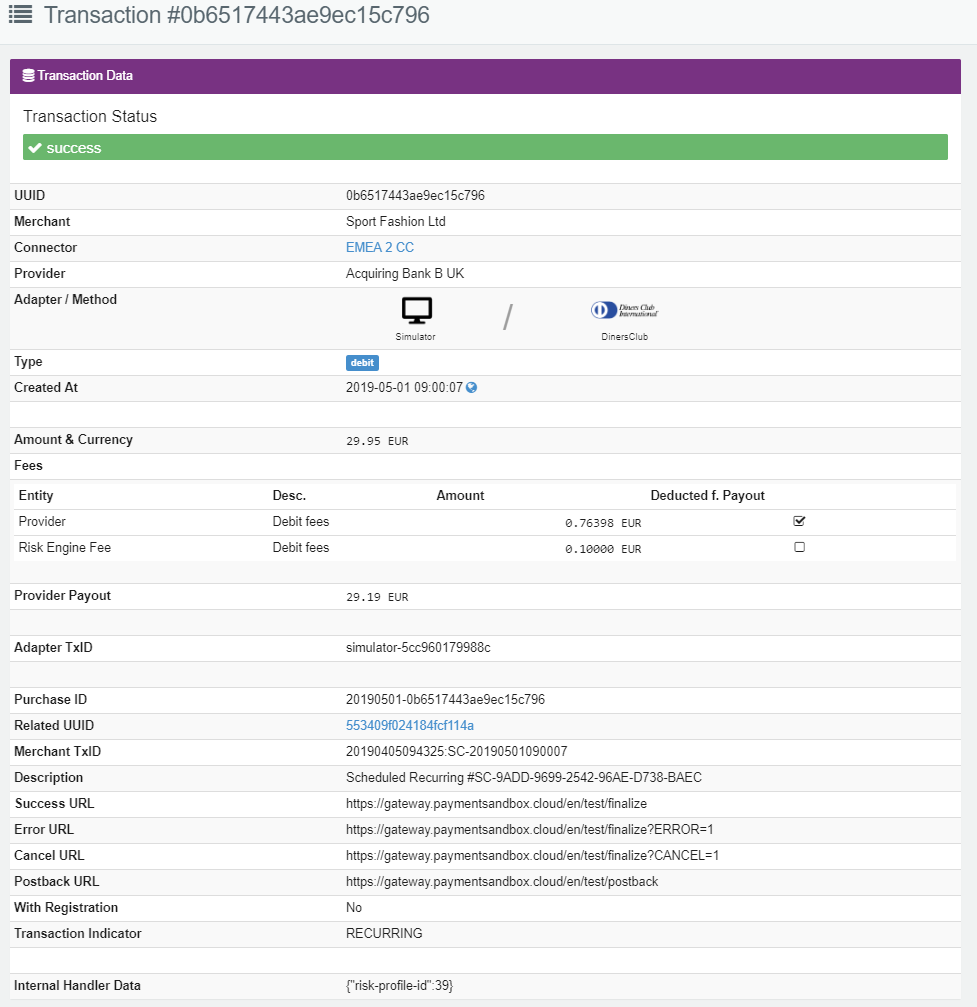 Transaction Data
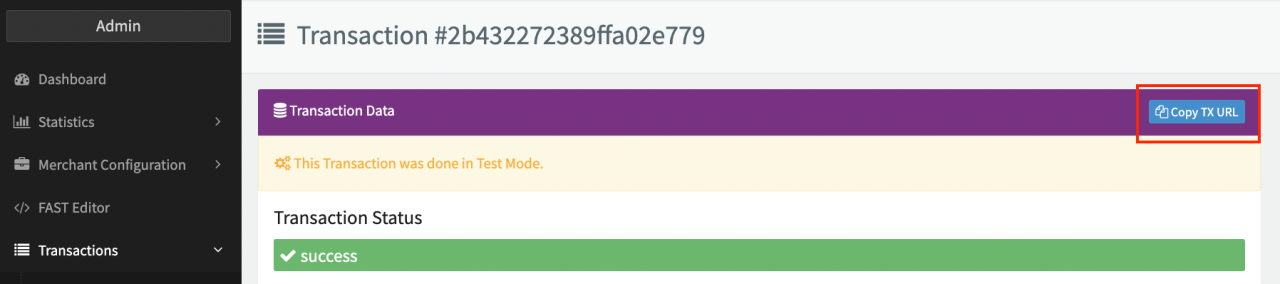
To ensure investigations and troubleshooting are as quickly as possible, please include as much of the information (e.g. sample Transaction UUID, description of issue) as you can when contacting our Support Team in the IXOPAY Customer Experience Portal when encountering issues. For easy use click the Copy Tx URL Button in the Transaction Data.
 Copy TX URL
Payment Data
In this section you will find data relating to the customers payment instrument used for the Transaction (see Payment Data Table)
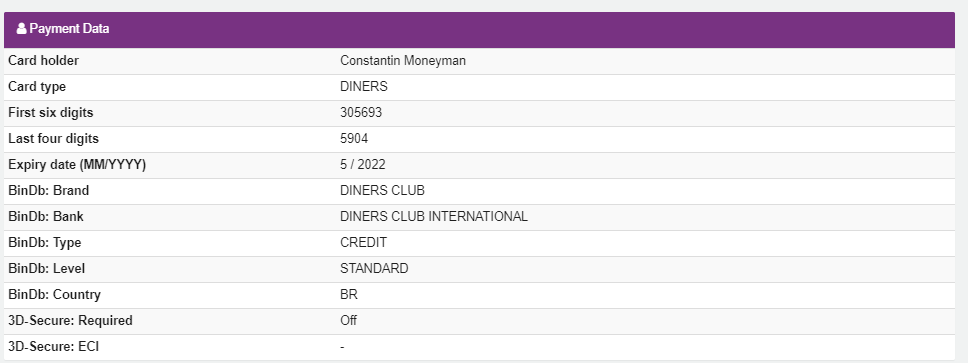 Payment Data
Customer Data
In this section you will find data relating to the customer itself (see Customer Data Table). This data is provided by the Transaction Request.
In case the customer data is linked to a Customer Profile, you can navigate to the Customer Profile directly by using the Show Button.
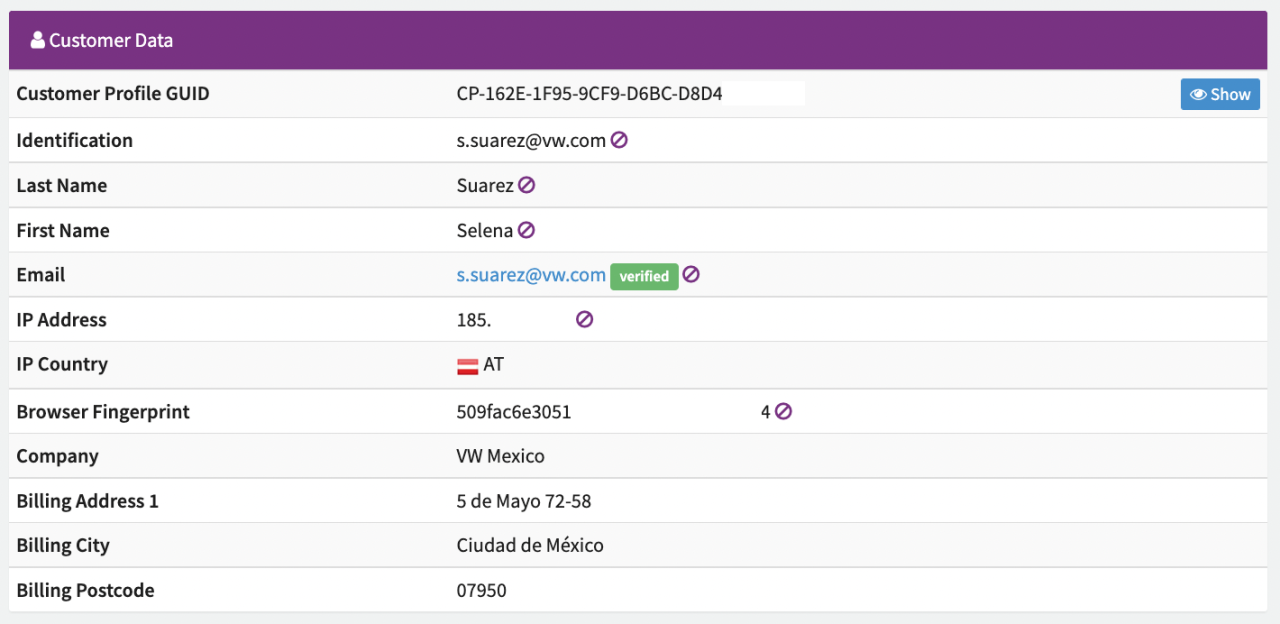 Customer Data
Status History
In this section you will find the different Processing Status Changes (e.g. await_redirect to redirected, redirected to success) as well as Settlement Status Changes (e.g. Notice Received, Funds Received, Pending, In Progress, Cleared) incl. timestamp.
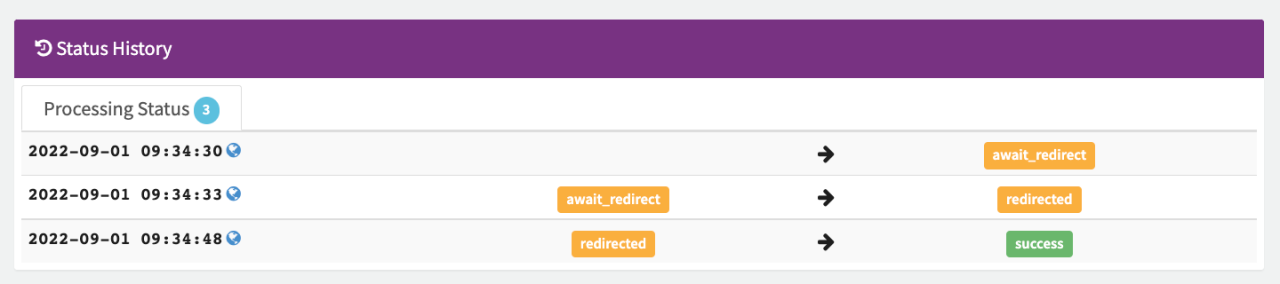 Processing Status
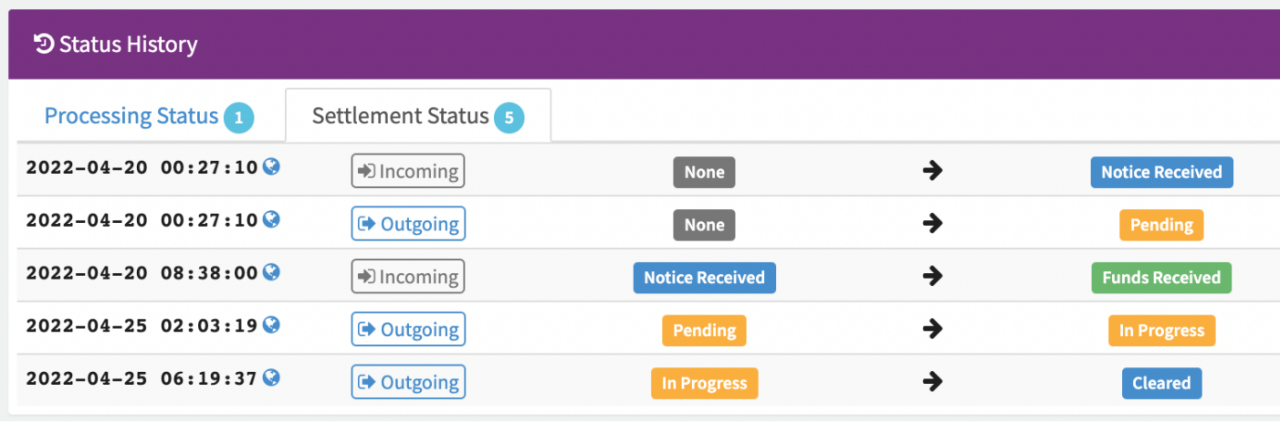 Settlement Status
Transaction Tree & Followup Transactions
In this section, similar to the Transaction Status , you will find data and links to related transactions (e.g. pre-authorize and capture transactions, splits, refunds, chargebacks) and followup transactions (e.g. scheduled transactions) to the current transaction
 Transaction Tree
Risk-based Data
In this section you will find data related to performed Risk Checks (see Risk-based Data Table). This section will only appear in case a Risk Profile is assigned on Merchant and/or Connector level. Transactions processed by the Connector will be checked against the Risk Rules configured in the assigned Risk Profile and based on the Risk Score and associated Score Card Actions, Transactions will be approved, declined or require a manual review, etc.
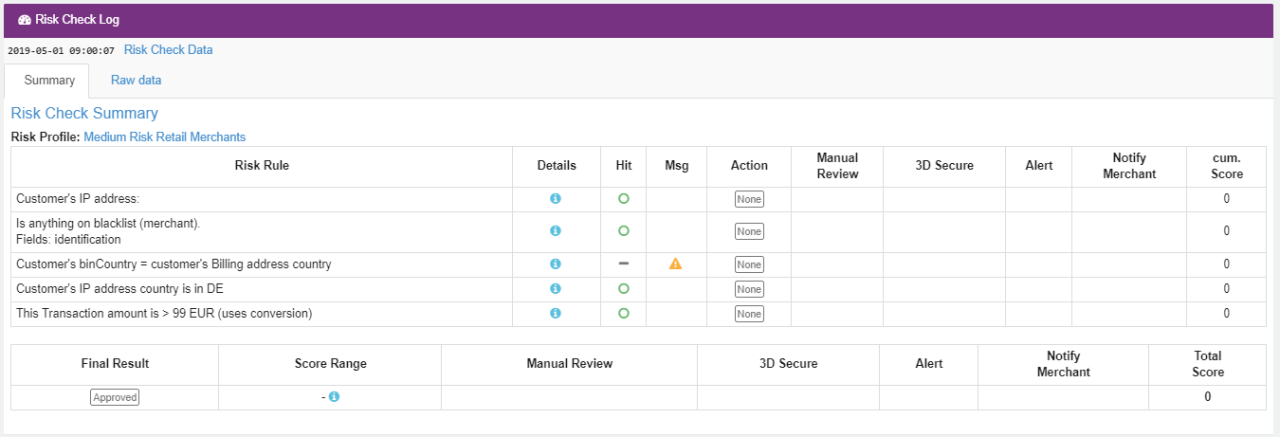 Risk Check Log
@@CALLOUT_OPEN|tip|@@
For more information about Risk Profile, Risk Rules and Strategies see the Risk Management section.
Attached Schedules
This section will be shown in case a Transaction is scheduled. For more information see also Transaction Schedules
 Attached Schedules
Post-Processing Data
Depending on your System Setup and Postprocessing Configuration you may be able to see further information about Post-Processing data.
This includes:
- Reconciliation: Is the Transaction reconciled with the Provider’s data
- Provider Settlement: Is the Transaction settled by the Provider
- Jobs: Are there any Post-Processing Jobs where this Transaction was considered for or Outgoing Settlements. Additionally you can set/remove the invoice-able flag, which may be relevant for particular job steps.
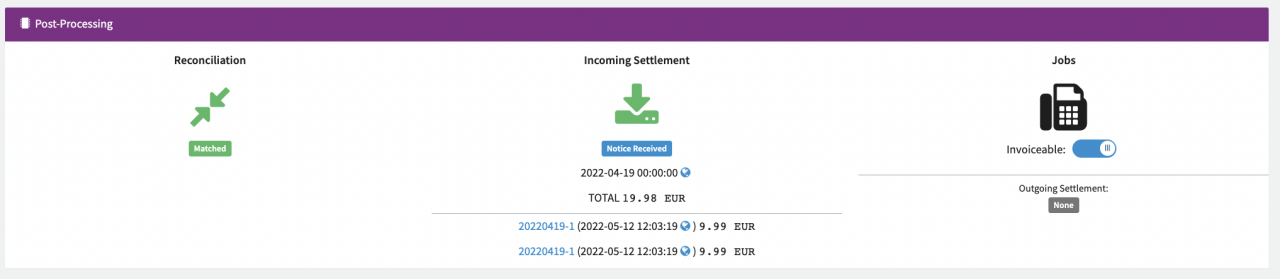 Post-Processing
Files are retained for 12 months and permanently deleted thereafter.
Comments
In this section you have the possibility to add internal comments to the individual Transactions. Follow these steps to leave a comment:
- Select Add comment
- Enter the comment and select Save
 Comments
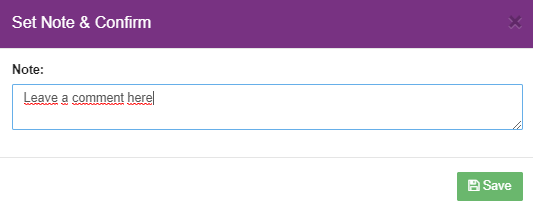 Set Note & Confirm
Logs
In this section you will find all data relating to the transaction processing starting from the moment the API Request is received by the IXOPAY platform, including all intermediate (Payment Form Rendering, Redirecting, Postback Notifications) and executed actions with different PSPs in the background (Adapter Calls) with exact timestamp (UTC).
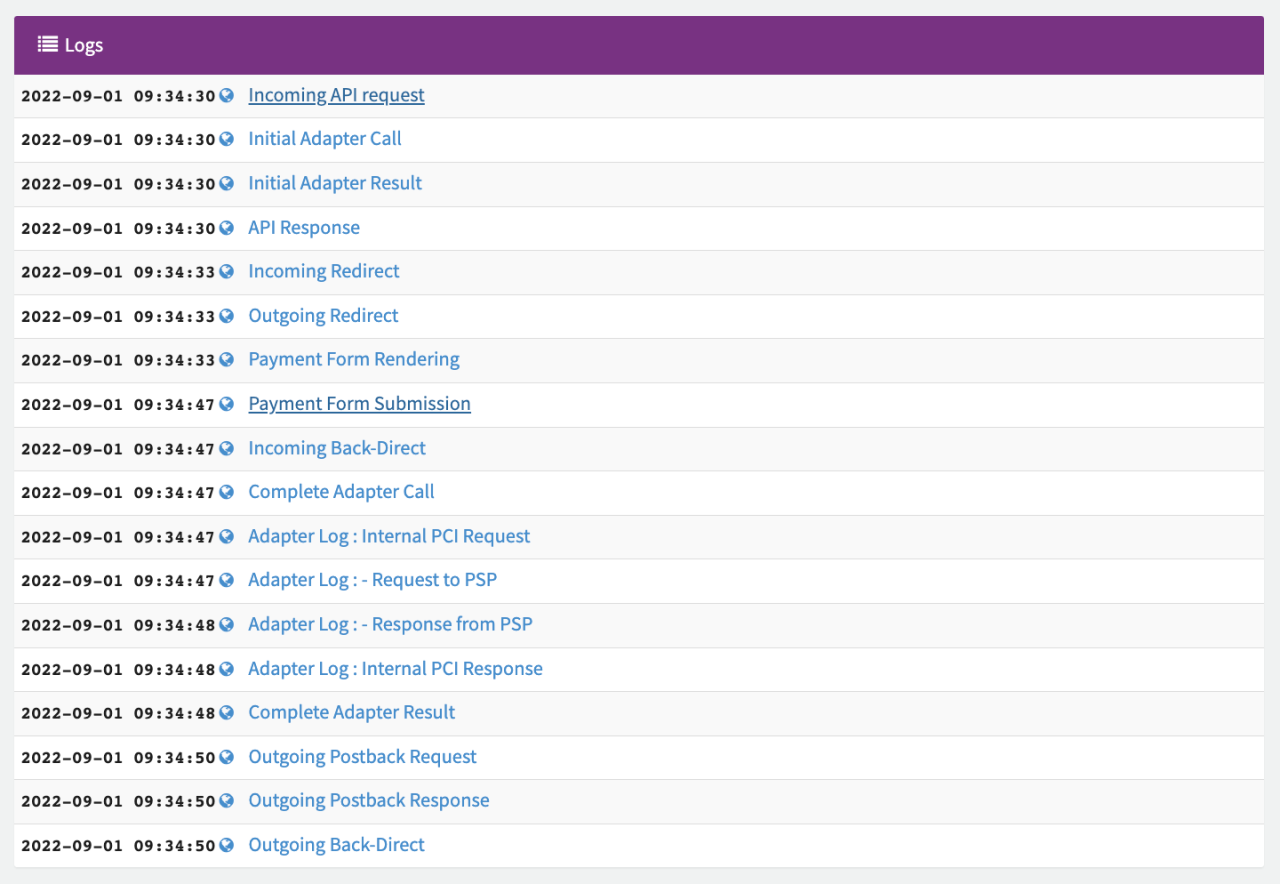 Logs
Logs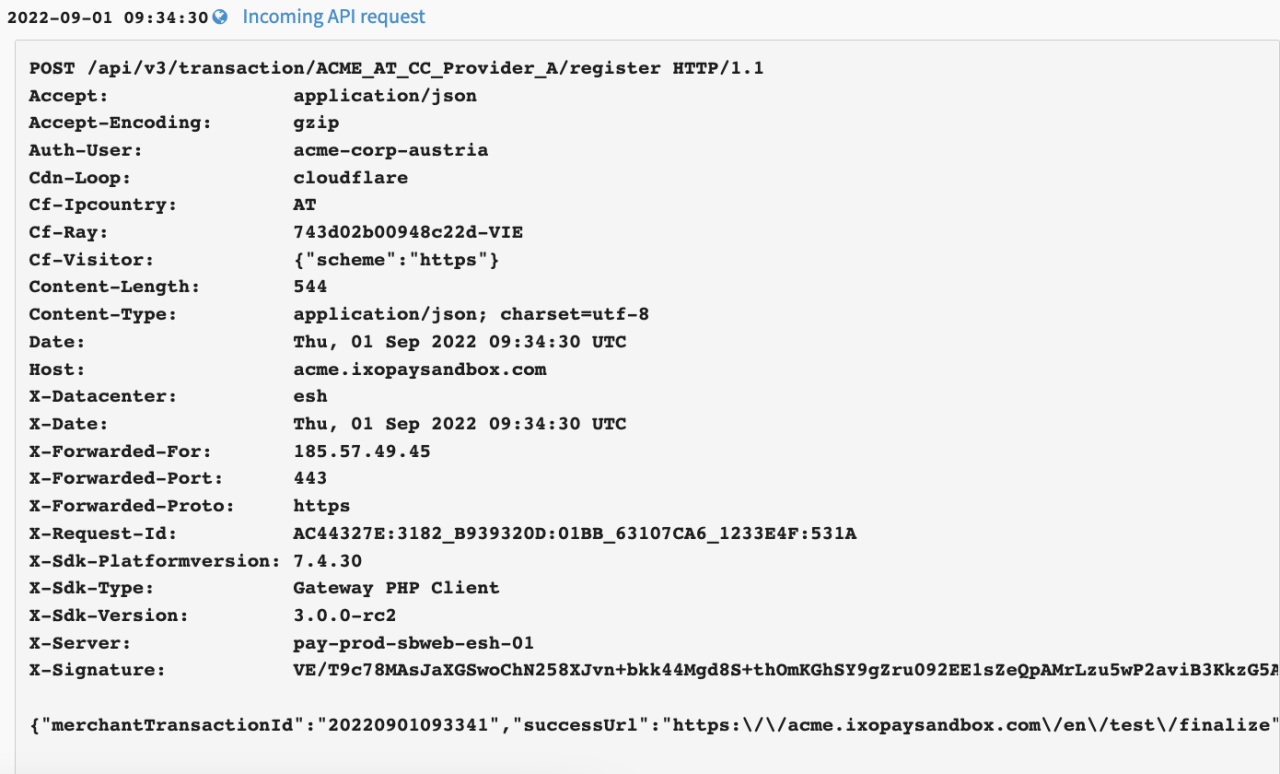 Logs Entry