
Success Hooks
Success hooks allows you to perform automatic custom Actions once a Transaction reaches the success state. The setting is configured per Connector, but can also be configured as a Global Settings.
The following hooks are currently available:
- Send Sendgrid Mail
- Send Success Mail to customer / merchant
- Create Mandate
Not all options may be applicable to you.
Configuring Success Hooks
To configure hooks follow this steps:
- Go to the Connector Detail Overview of the desired Connector
- Click Edit on the Settings section (see Connector Detail Overview)
- Select the Connector Setting Hooks: Transaction Success and click Add (see Connector Settings)
- Configure the mandatory parameters and click Save (see Hook Type: Send Sendgrid Mail)
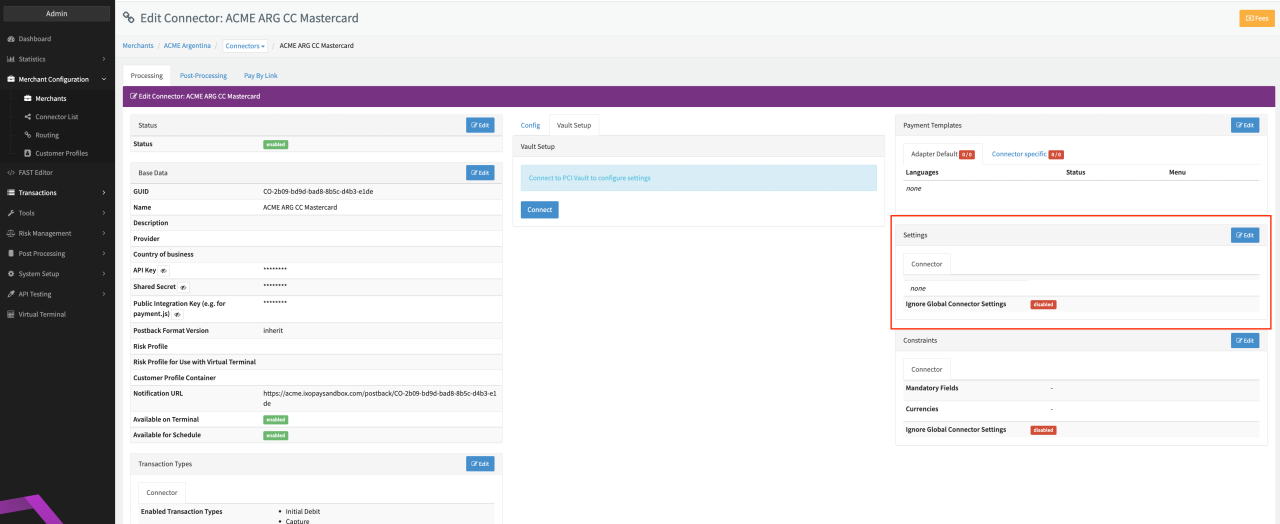 Connector Detail Overview
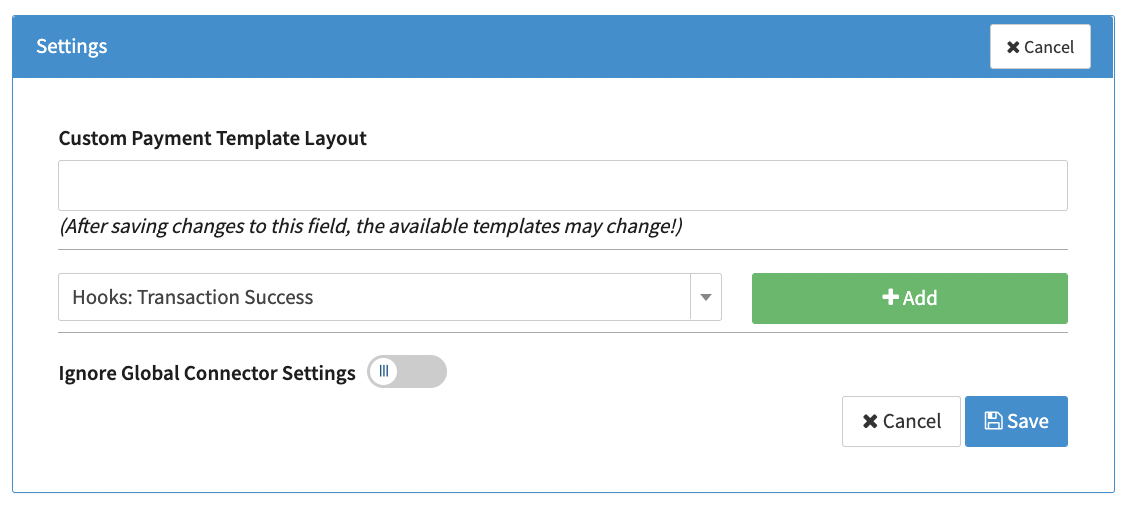 Connector Settings
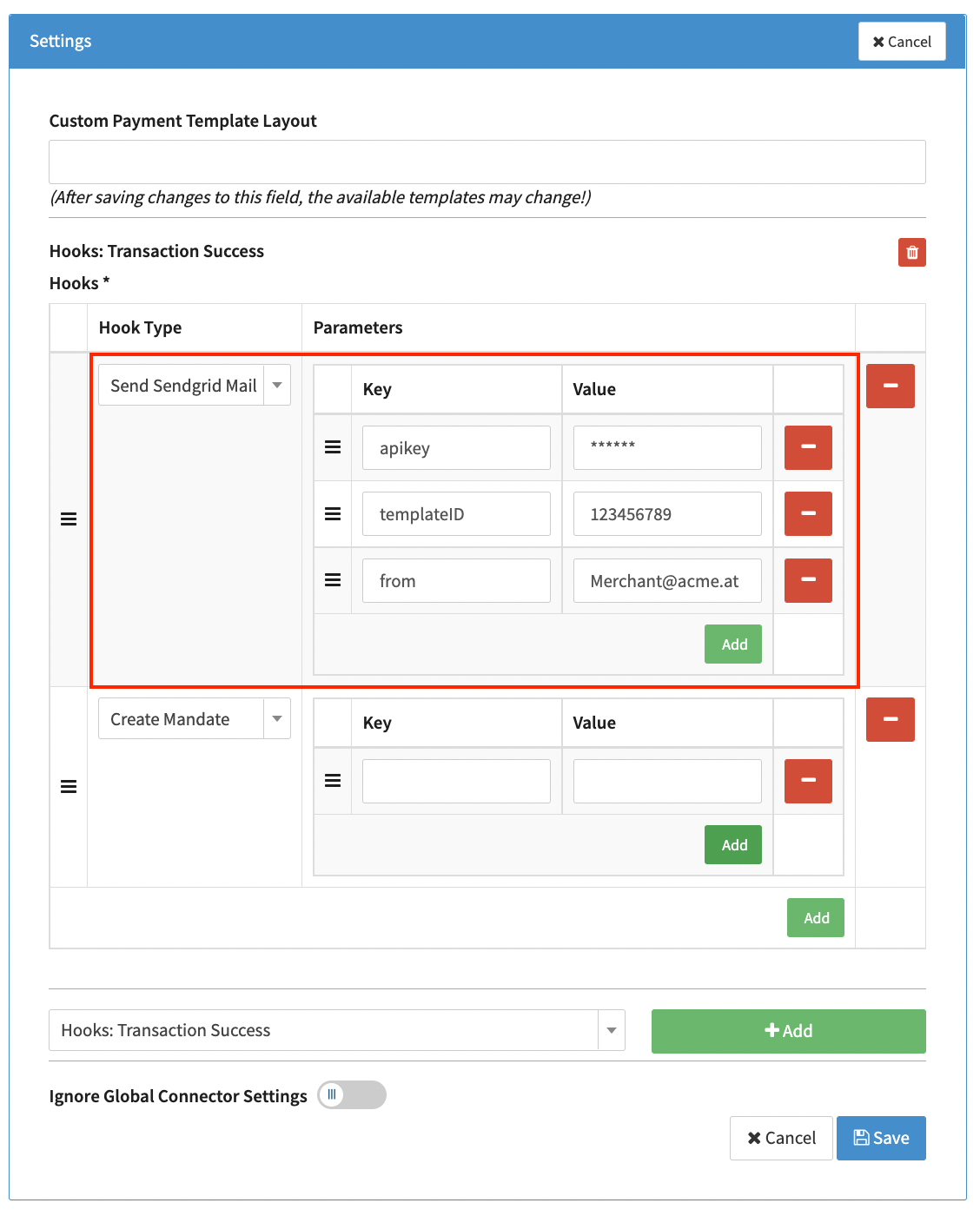 Hook Type: Send Sendgrid Mail
Send Sendgrid Mail
This hook triggers a send-email request to a configured SendGrid Account.
Hook Type: Send Sendgrid Mail
Mandatory Parameters (see Hook Type: Send Sendgrid Mail):
- apiKey - API Key of your SendGrid Account
- templateID - template ID of the desired mail template (configured in SendGrid)
- from - Sender email address
Optional Parameters:
- to - Email of recipient. This parameter should only be used if all emails should be sent to the email specified here. Without a “to” parameter, emails will per default be sent to the customer email
- subject - Subject of email. When specifying a subject, make sure to add the placeholder in the SendGrid template (see SendGrid Template Configuration)
- cc - CC recipients of email
- bcc - BCC recipients of email
- from_name - Sender name (usually appears in mail clients alongside with the mail address, e.g.
Alex Smith <[email hidden]>)
There are additional dynamic fields available to be used in these templates (see table below) (e.g. {{transaction.amount}}).
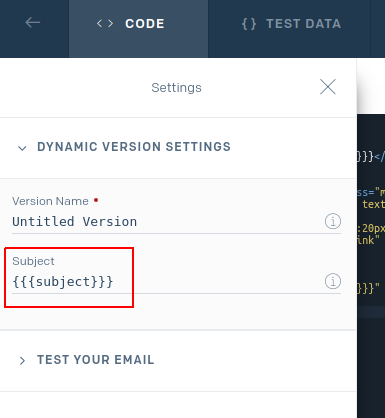 SendGrid Template Configuration
Send Success Mail to customer (PayByLink)
This hook triggers an email to be sent to the customer email address.
Hook Type: Send Success Mail to customer (PayByLink)
There are no mandatory Parameters to be added.
Email templates to be used, need to be configured in the Pay-By-Link Tab for this connector.
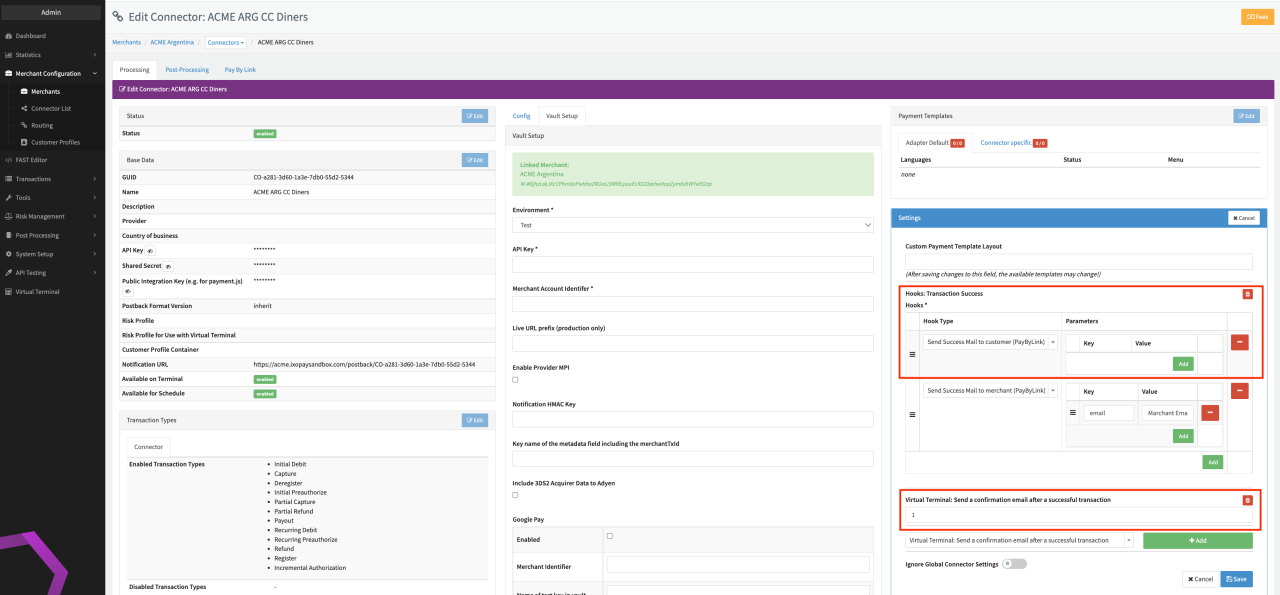 Connector Setting Send Success Mail to customer (PayByLink)
Emails are only sent for transaction types debit, pre-auth, register and payout and only if additionally the Connector Setting Virtual Terminal: Send a confirmation email after a successful transaction is enabled.
Send Success Mail to merchant (PayByLink)
This hook triggers an email to be sent to the specified merchant email address.
Hook Type: Send Success Mail to merchant (PayByLink)
Mandatory Parameters (see Connector Setting Send Success Mail to merchant (PayByLink)):
- email - Merchant email address the email should be sent to
Email templates to be used, need to be configured in the Pay-By-Link Tab for this connector.
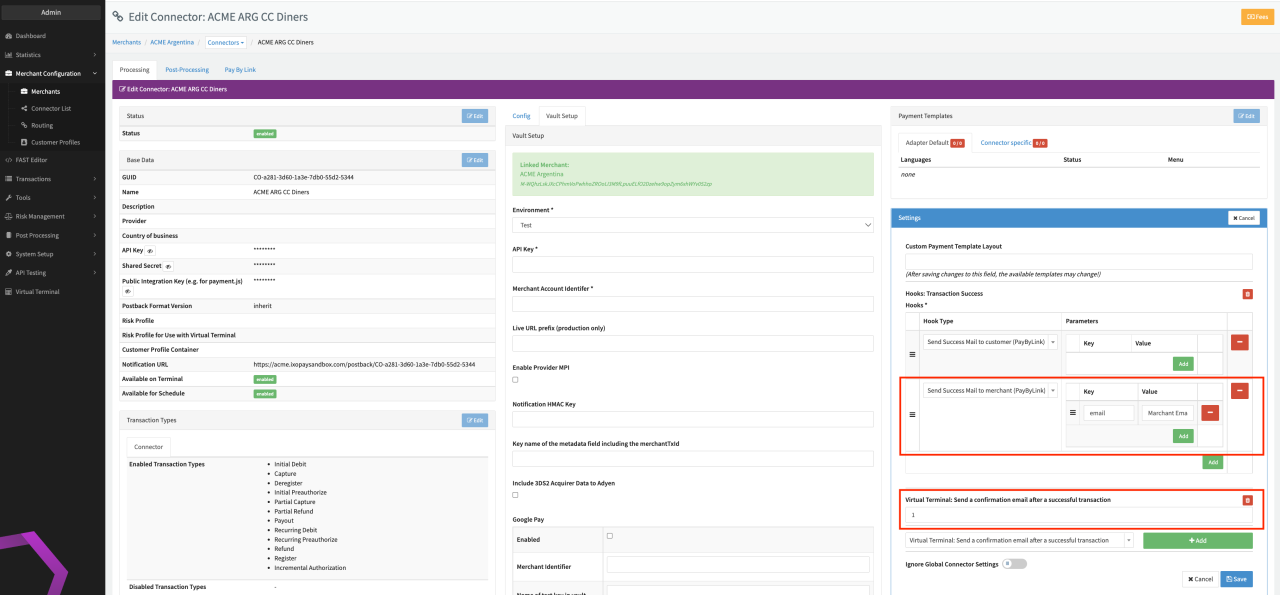 Connector Setting Send Success Mail to merchant (PayByLink)
Emails are only sent for transaction types debit, pre-auth, register and payaut and only if additionally the Connector Setting Virtual Terminal: Send a confirmation email after a successful transaction is enabled
Create Mandate
This hook triggers a Mandate ID to be created and added in the Payment Data section of the Transaction Details for Transaction Type Register.
Hook Type: Create Mandate
Mandatory Parameters (see Connector Setting Create Mandate):
- connector - GUID of the Sepa Connector to be used for the Transaction Processing
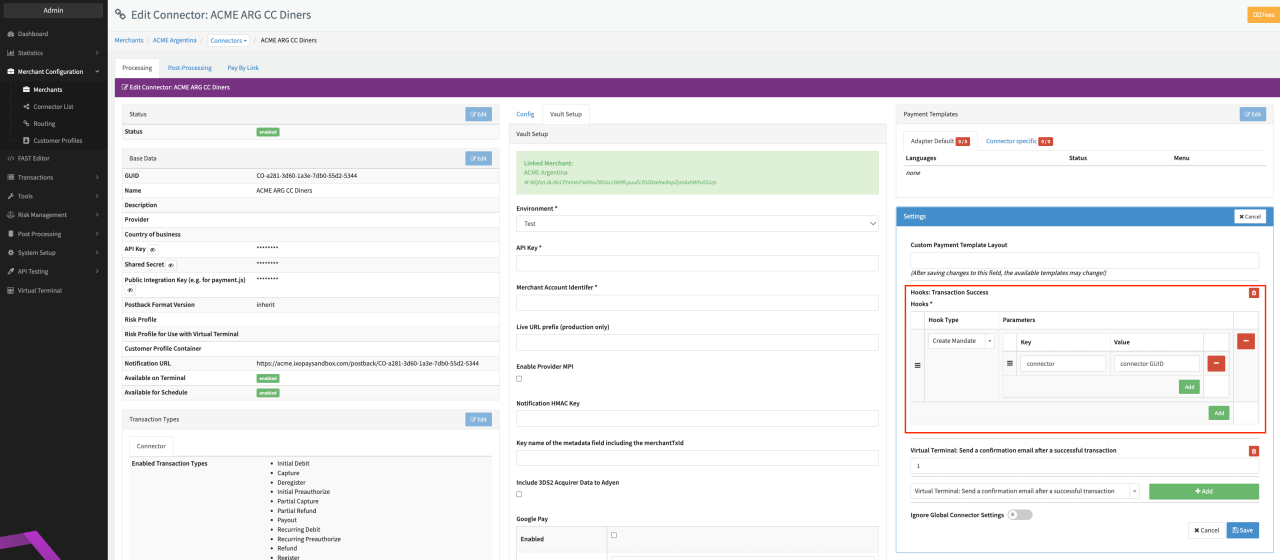 Connector Setting Create Mandate
This Hock Type should only be used for the combination of Adapters Fintec (for transactions of type register) and SepaExpressV1 (for recurring transactions of type debit).
In any other case we recommend to use the mandate flow of Adapter SepaExpressV2 as described in the Adapter-specific Guides Sepa.